If you’ve landed here, you’re probably wondering how to remove open to work on LinkedIn without messing up your profile or triggering unwanted attention. Whether you’ve already found a new job, want to appear more discreet during your job search, or simply prefer a cleaner profile, removing the Open to Work LinkedIn banner is quick and painless—as long as you know where to click.
This guide breaks down everything step-by-step, including hidden settings, common mistakes, and what happens after you turn the feature off.
Why people remove open to work on LinkedIn
The green “Open to Work” photo frame is useful, but it’s not for everyone. Many professionals decide to turn it off for several reasons:
- they’ve accepted a new job
- they no longer want the banner visible to all profile visitors
- they prefer a more neutral, polished appearance
- they want to pause or hide their job search from their current employer
Whatever your reason, the process is simple once you know exactly where LinkedIn hides the settings.
How to remove open to work on LinkedIn
If you’re using LinkedIn from your computer, follow these steps:
1. Go to your LinkedIn profile
Click your profile picture in the top-left corner or select “View profile” from the dropdown under your picture.
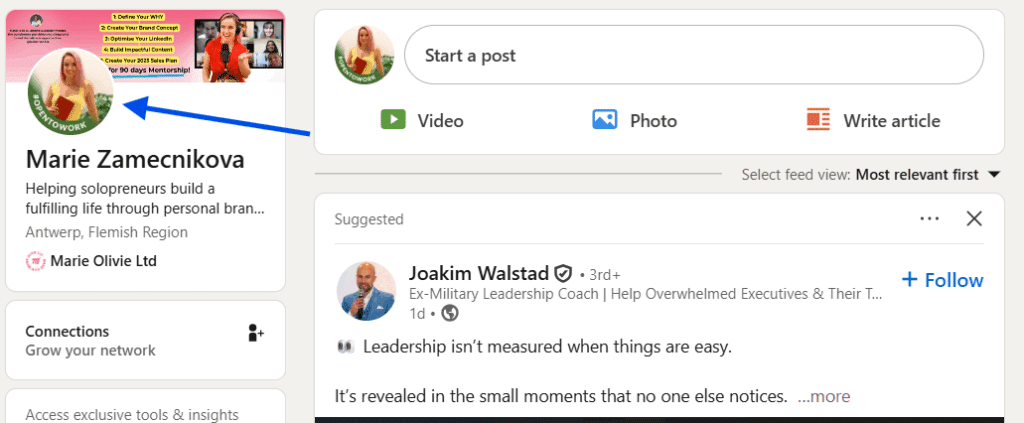
2. Locate the “Open to” section
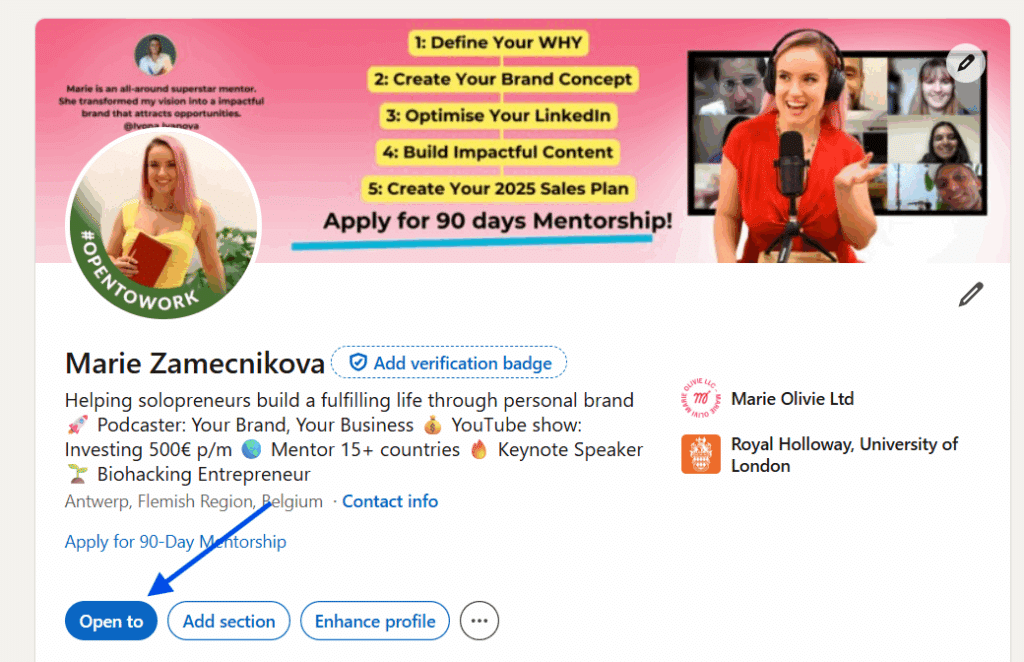
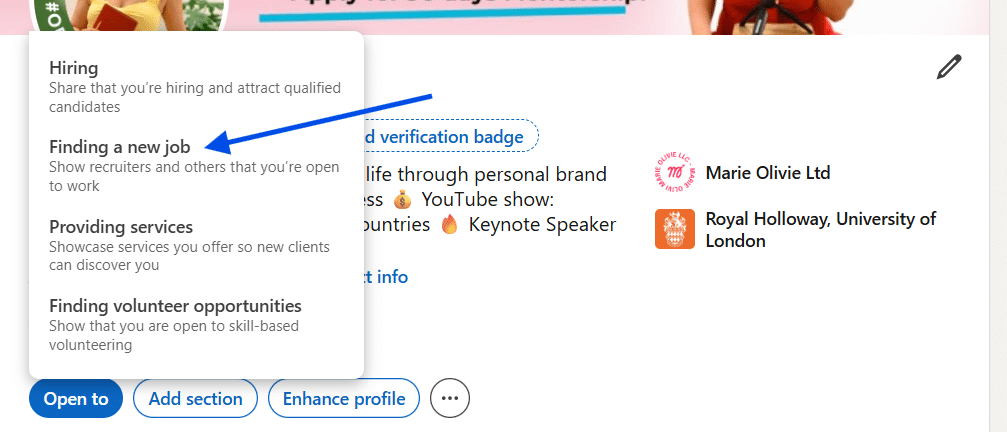
At the top of your profile—usually under your headline—you’ll see a box labeled “Open to” if you’ve enabled it. Click it, then click the “Finding a new job” option.
3. Click “Delete”
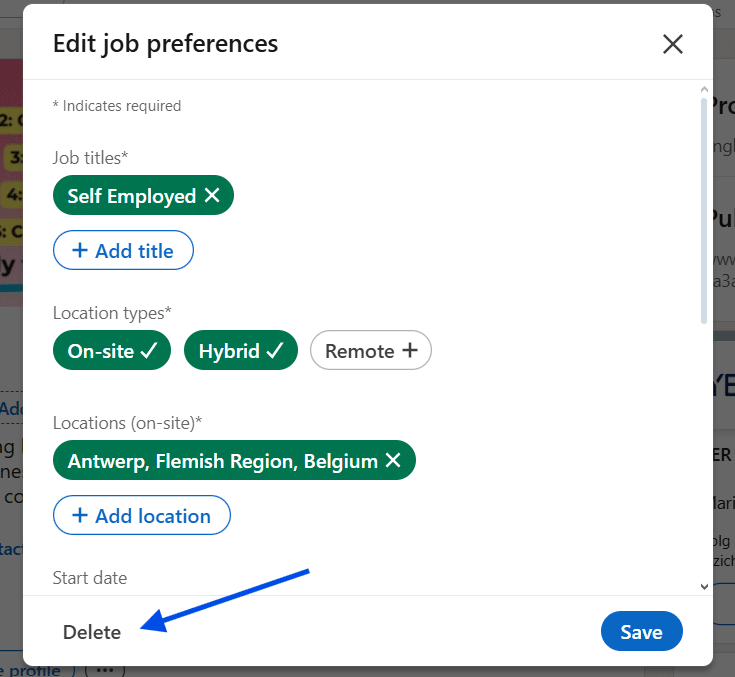
You will see a small link that says “Delete”. This option removes the entire Open to Work section, including the green photo frame. LinkedIn will ask you to confirm. Click Delete.
5. Check your profile picture
Removing the section also removes the green frame automatically. Refresh your profile to make sure the change took effect.
Want to keep job alerts but remove the banner?
Here’s a big mistake many users make: They think removing Open to Work LinkedIn means they’ll stop receiving job recommendations or alerts. Good news: You can remove the banner without losing any job-seeking benefits.
How to do it:
When you get to the editing pop-up, scroll all the way down. There, you will see two options – “Recruiters only” and “All LinkedIn members”. Choose the recruiuters option.
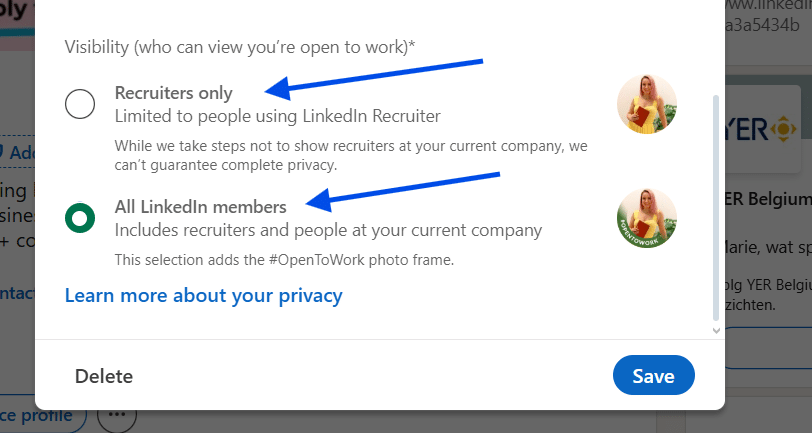
This removes the photo frame from your profile but still keeps your job preferences active for recruiters using LinkedIn Recruiter. This option is perfect if you:
- are searching discreetly
- don’t want the banner visible
- want recruiters to still find you
What happens after you remove open to work?
Many people wonder what the impact is on their profile visibility. Here’s what actually happens:
- Your profile photo returns to normal
- Other users no longer see the Open to Work section
- Recruiters may still see your preferences (if you choose that option)
- Your activity feed does not announce the change
- Your connections aren’t notified
So, turning it off won’t accidentally alert your boss or colleagues.
Removing the banner is easy once you know where LinkedIn hides the option. Whether you’re stepping into a new role, rebranding your profile, or going into low-visibility job search mode, knowing how to remove Open to Work on LinkedIn helps you stay in control of how you present yourself professionally.