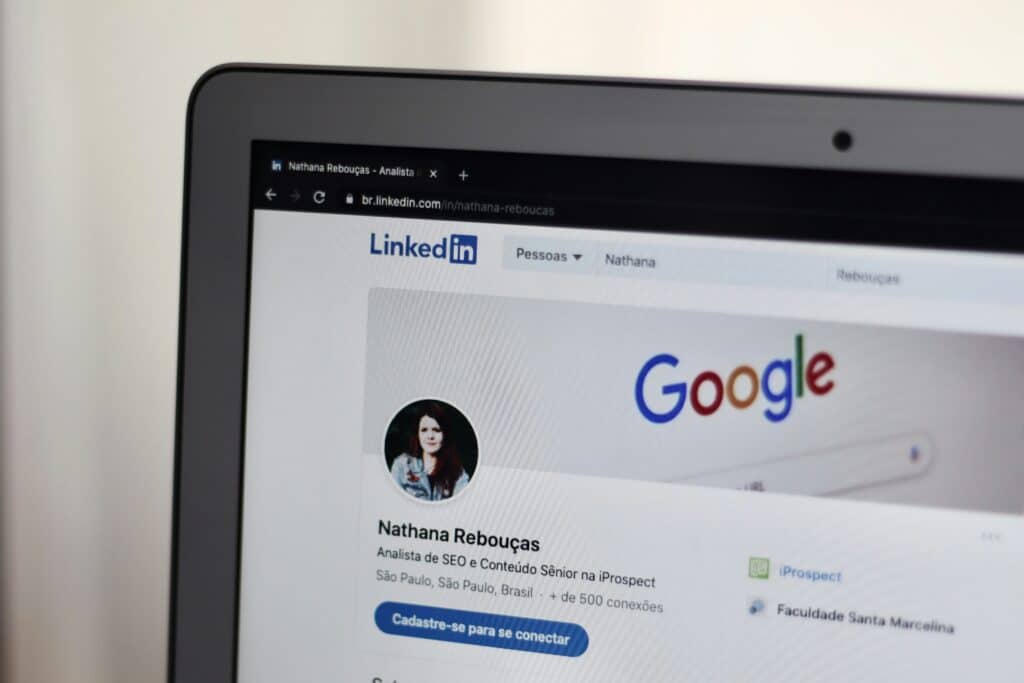
LinkedIn has become the go-to platform for personal branding, networking, and career building. Whether you’re a freelancer, job seeker, entrepreneur, or company representative, your LinkedIn header plays a major role in creating a strong first impression. Yet many users still upload blurry, incorrectly scaled, or poorly designed banners simply because they’re unsure about the right linkedin cover photo size.
This guide explains exactly what dimensions LinkedIn requires, how to design a high-quality banner, and what tools (like canva linkedin banner templates) can help you get it right.
Why your LinkedIn header matters more than you think
Your LinkedIn header is the largest visual element on your profile. It sits at the very top, meaning it’s the first thing visitors see—even before your headline or profile summary.
It builds instant credibility
A clean, sharp, well-designed banner signals professionalism. It tells recruiters, clients, and partners that you care about your brand.
It strengthens your personal story
Your banner can showcase what you do, your values, your industry, and even your unique style. Whether through text, images, or LinkedIn banner quotes, it’s an opportunity to communicate what makes you stand out.
It increases engagement
Profiles with branded visuals get more views and messages. People remember visuals more than text, so your banner can create a memorable first impression.
Official LinkedIn cover image dimensions
To avoid blurry or cropped banners, you need to follow LinkedIn’s official guidelines closely. These specifications change occasionally, so designers must stay updated.
Standard LinkedIn cover photo size
The recommended linkedin cover photo dimensions for personal profiles are 1128 × 382 pixels. This is the size that ensures your banner displays clearly across all devices—including desktop, mobile, and tablets.
Safe zones you must consider
Even if you upload the correct linkedin cover pic size, parts of your banner may still be hidden behind your profile photo or buttons. General safe-design tips:
- Keep all text and important elements centered.
- Avoid placing logos near the edges.
- Leave extra space on the left side where the profile picture overlaps.
- Test the design on both desktop and mobile.
LinkedIn banner specifications: File types and quality recommendations
To ensure your banner uploads correctly, use these file rules provided by LinkedIn:
Supported file formats
- JPG
- PNG
Avoid using GIFs—LinkedIn does not support animated banners.
Maximum file size
- Up to 3 MB
Recommended resolution
Always export your banner in high resolution—preferably 72 DPI or higher—to avoid pixelation.
How to design a perfect banner using Canva LinkedIn banner templates
Canva has become the most popular tool for creating professional LinkedIn visuals because it’s easy to use and has templates designed specifically for the platform.
Step-by-step: Designing your banner in Canva
- Open Canva and search for “LinkedIn banner” templates.
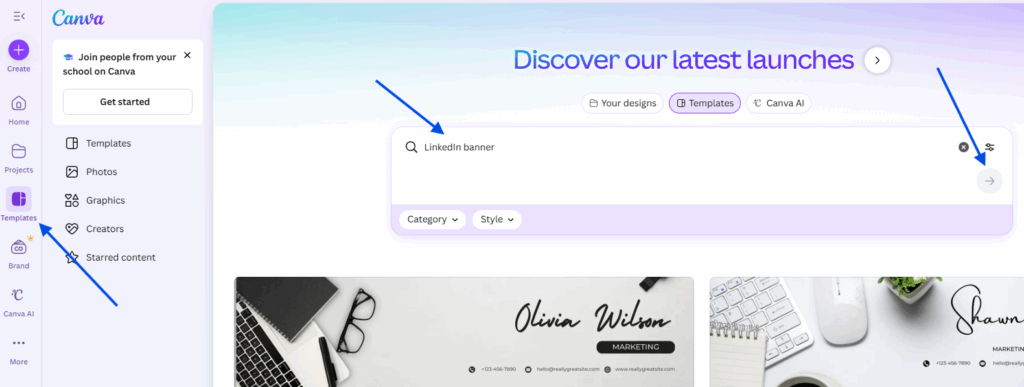
- Select a layout that matches your industry or personal brand and click on “Customize this template”.
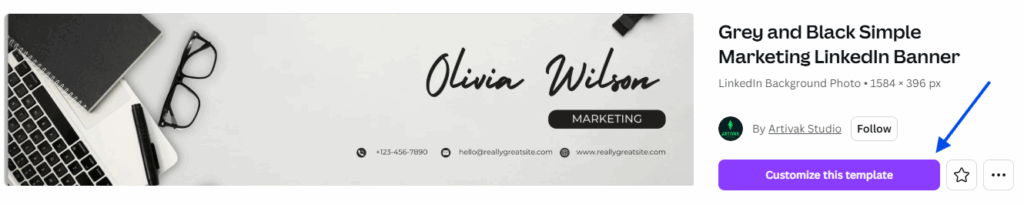
- Replace the default text with your slogan, job title, or personal message.
- Add brand elements like colors, icons, or patterns.
- Double-check alignment to ensure everything fits within the safe zone.
- Export in PNG format for the best clarity.
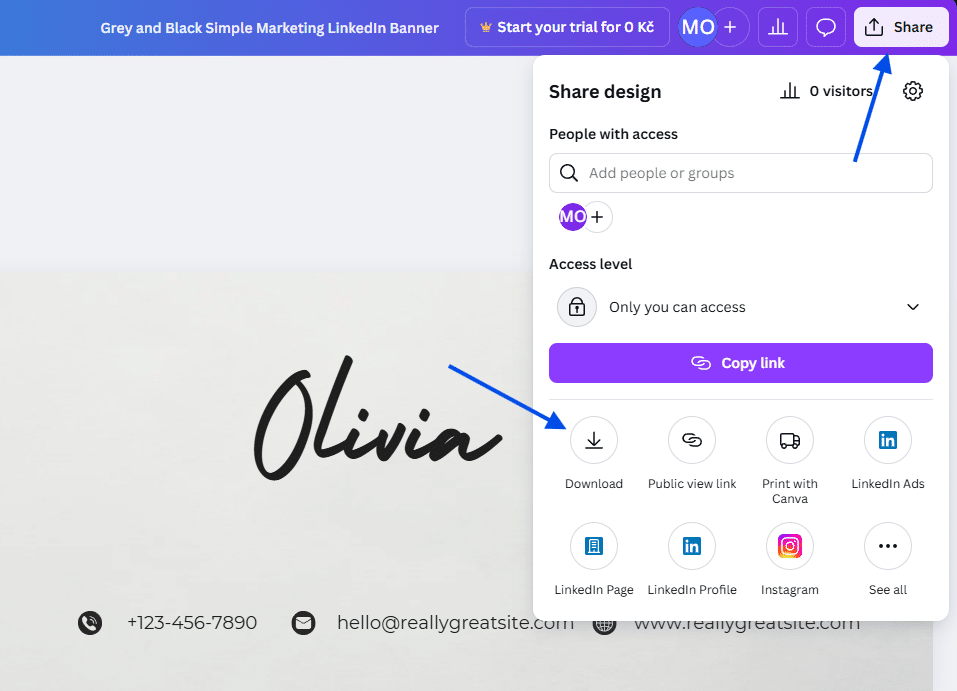
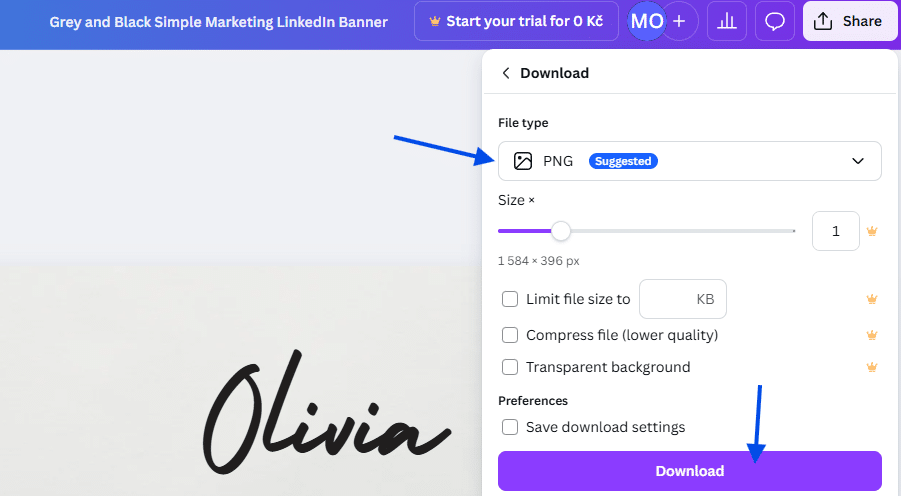
- Upload it to LinkedIn directly from your profile section.
Design ideas you can use
- A minimalist banner with your job title and a subtle background.
- A photo of your workplace or tools of your trade.
- A branded pattern or color palette that matches your website or résumé.
- A professional portrait blurred behind text.
- Inspirational linkedin banner quotes (short, bold texts work best).
Common mistakes to avoid when uploading your LinkedIn header
Even with the perfect design and correct linkedin cover image dimensions, users often make mistakes that ruin the appearance of their profile. Here’s what to avoid:
Using low-quality images
Screenshots or blurry photos will look unprofessional. Always use HD images.
Placing text too close to the edges
Remember: LinkedIn crops banners differently on desktop and mobile.
Using colors that clash with your profile photo
Your header should complement—not distract from—your profile picture.
Overcrowding the banner
Minimalist designs look the most polished and modern.
Final tips for a professional LinkedIn cover photo
- Stick to the recommended LinkedIn cover photo dimensions for the best results.
- Use Canva or another design tool to create a polished, brand-consistent visual.
- Focus on readability—your message must be easy to understand at a glance.
- Keep the layout simple and clean.
- Test the banner on multiple devices before you publish it.
A well-designed linkedin header can elevate your profile dramatically. It shows confidence, professionalism, and clarity—all qualities that recruiters, clients, and collaborators look for. When your banner aligns with your personal brand, it becomes one of the most powerful elements on your LinkedIn profile.