In a world where first impressions happen both online and offline, having your LinkedIn profile ready to share instantly is a game-changer. Whether you’re at a conference, job fair, business meeting, or casual networking event, the LinkedIn QR code makes connecting fast, effortless, and error-free. No more typing names manually or searching through dozens of profiles — one quick scan and you’re connected.
If you’ve ever wondered how to get a linked QR code from LinkedIn or how to use it effectively, this guide will walk you through everything. From finding your linkedin qr code to sharing, saving, and adding it to your business materials, here is the ultimate tutorial you’ve been looking for.
What is a LinkedIn QR code and why should you use it?
A LinkedIn QR code is a scannable image that directly links to your LinkedIn profile. Anyone with the LinkedIn app can scan it using their camera and connect with you instantly. This small digital tool has huge benefits:
- Instant networking — no typing or searching required.
- Error-free connections — avoids spelling mistakes and mistaking for other profiles.
- Perfect for events — trade shows, conferences, job fairs, and interviews.
- Easy to place anywhere — business cards, email signatures, resumes, or presentations.
In short, the QR code LinkedIn shortcut helps you stand out, look professional, and save time.
How to get a LinkedIn QR code (mobile & desktop guide)
Getting your LinkedIn QR code on mobile
The LinkedIn mobile app gives you instant access to your QR code. This is the fastest method and works on both iOS and Android.
Step-by-step instructions
- Open the LinkedIn app on your smartphone.
- Tap the search bar at the top of your screen.
- On the right-hand side, you’ll see a small QR code icon — tap it.
- Your linkedin qr code will immediately appear.
- Select share or save to gallery.
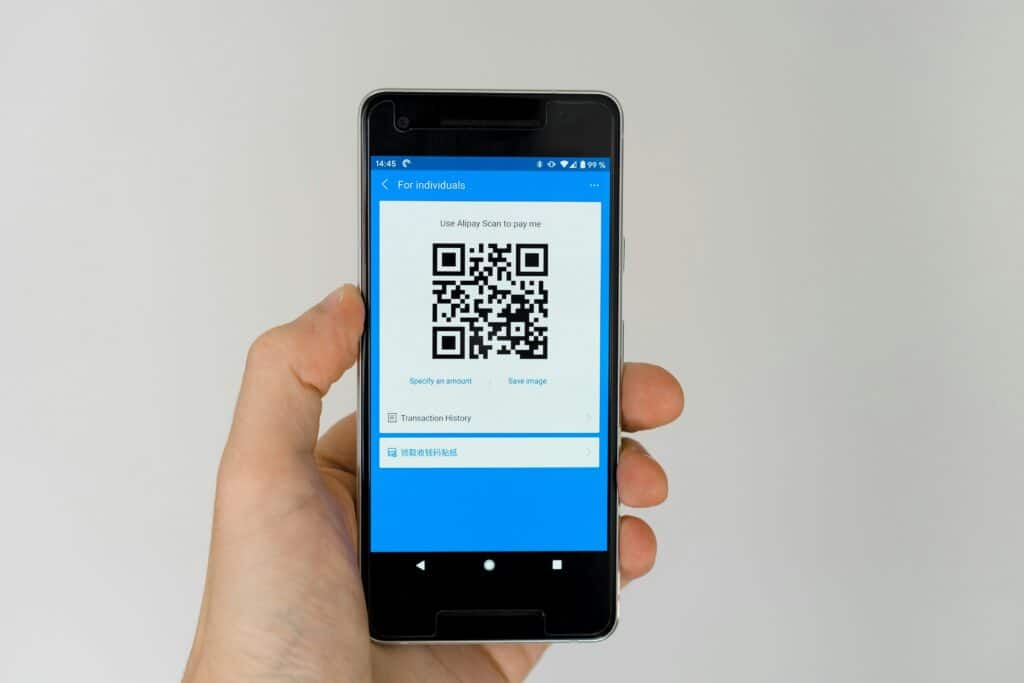
That’s it! You now have a scannable code that links directly to your profile.
Tips for using your mobile LinkedIn QR code
- Add it as your phone’s lock-screen wallpaper for quick access when at events.
- Save it to your gallery so you can send it even when offline.
- Share it via WhatsApp, email, or AirDrop when meeting new contacts.
How to get a LinkedIn QR code on desktop
Many users search for the qr code linkedin feature on desktop and can’t find it — and for good reason. LinkedIn currently offers the QR code feature only in the mobile app, not the desktop website. But don’t worry — there’s still a simple workaround.
The workaround method
- Open the LinkedIn app on your phone.
- Navigate to your LinkedIn QR code using the steps above.
- Tap share.
- Email the QR code to yourself or send it through a messaging app you can access on your computer.
- Download the image on your desktop.
Now you can use the QR code in your documents, CV, presentations, or printed materials without needing direct desktop access.