Managing your professional network matters more than people like to admit. Over time, your LinkedIn connections can grow fast, and not all of them stay relevant. Maybe someone changed industries, maybe you no longer interact, or maybe the connection was a mistake in the first place. Whatever the reason, many users quietly ask the same question: how can I remove a connection on LinkedIn without making it awkward?
The good news is that LinkedIn makes the process straightforward. You don’t need special permissions, and you don’t have to explain yourself. Below, you’ll find clear, step-by-step ways to remove a connection using only the options LinkedIn already provides.
Why people choose to remove connections
Your LinkedIn profile is not just a social page. It’s a professional space. Every connection influences what you see in your feed and how your network looks to others. Removing a connection can help keep things focused and relevant. Some people clean up their connections regularly. Others only do it when necessary. Either way, knowing how the process works saves time and avoids confusion later.
How can I remove a connection on LinkedIn
From a profile page
One of the simplest ways to remove a connection is directly from their profile page. This option works well if you already know who you want to remove.
Here’s how to do it step by step:
First, navigate to the profile of the person you want to remove. Once you’re on their profile, look at the introduction section near the top. Next, click More or the More button in that section. This opens a menu with additional actions. From that menu, select Remove Connection.
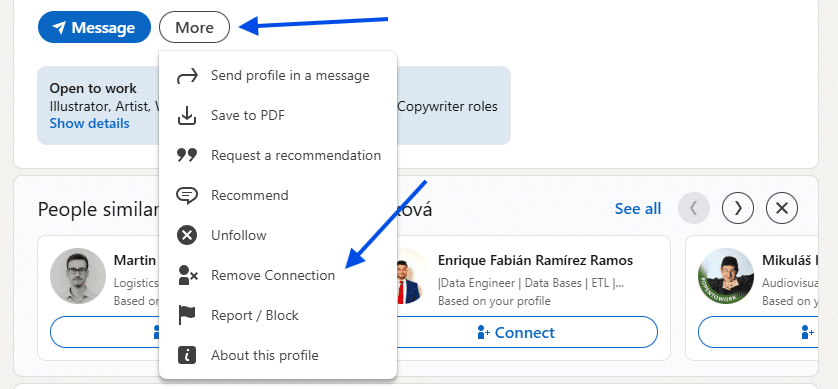
That’s it. Once you select Remove Connection, the status will immediately change to Connection Removed. There are no extra steps, and you don’t need to confirm anything beyond this action. This method is quick and works well if you’re reviewing profiles one by one.
Removing a connection from your connections page
If you prefer to manage your network in one place, LinkedIn also lets you remove connections from your Connections page. This is useful when you want to review multiple connections at once. To start, click the My Network icon at the top of your LinkedIn homepage.
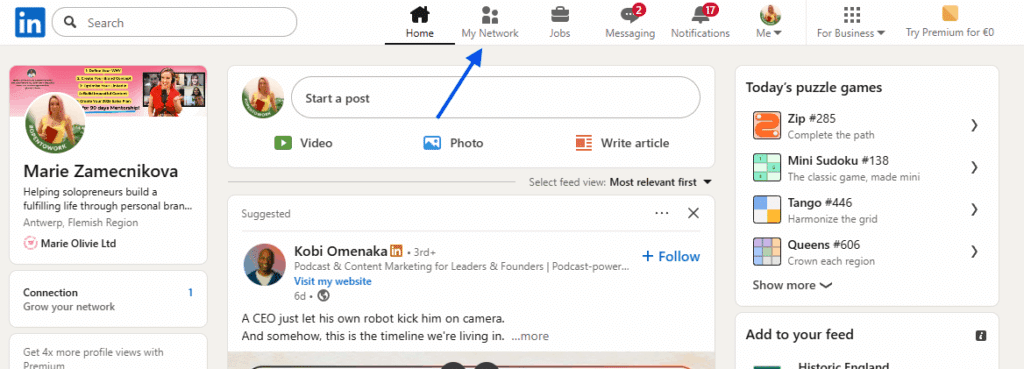
Under your profile name, you’ll see a link that displays the number of connections you have. For example, it might say 465 connections. Click that link to open your full connections list.
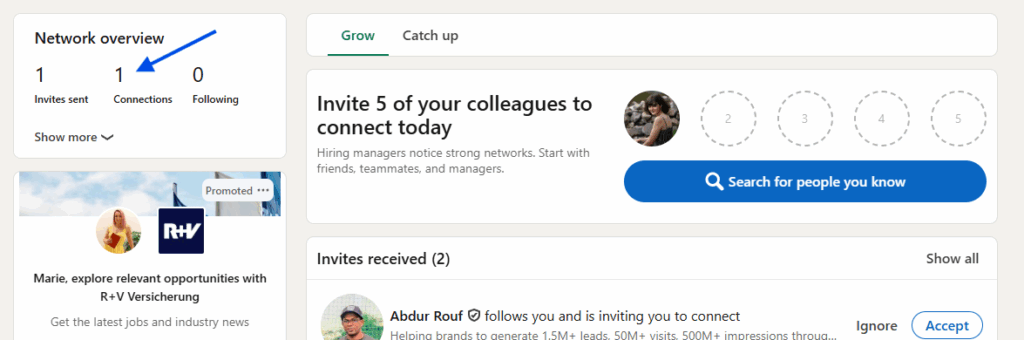
Once you’re on the Connections page, find the person you want to remove. Next to their name, click the More icon. From the menu that appears, click Remove connection.
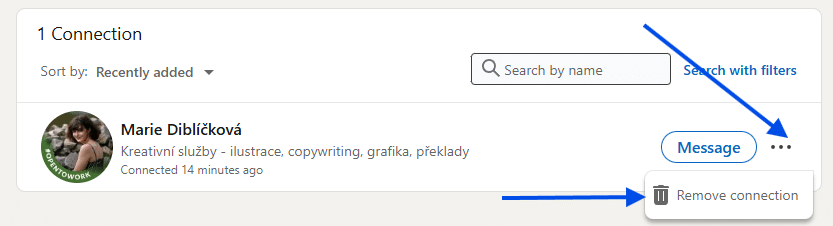
A pop-up window titled Remove Connection will appear. Click Remove to confirm.
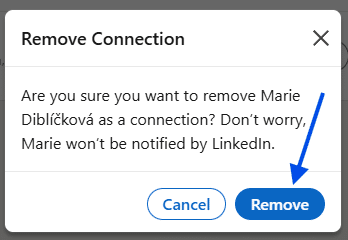
After this step, the connection is removed from your network.
Which method should you use?
Both methods do the same thing. The difference is convenience. If you already know the person and are viewing their profile, removing them from the profile page is faster. If you’re cleaning up your network or browsing your full list of connections, the Connections page gives you more control. There’s no limit mentioned on how many connections you can remove, and the steps stay the same every time.
What happens after you remove a connection
Once you remove a connection, their status changes to Connection Removed. That’s the only confirmation LinkedIn provides. The process does not require sending a message or explanation. Everything happens quietly through the platform’s built-in options.
If you’ve ever wondered how can I remove a connection on LinkedIn, the answer is simpler than most people expect. Whether you remove someone from their profile page or from your Connections list, LinkedIn gives you clear tools to manage your network. Keeping your connections aligned with your professional goals can make your LinkedIn experience cleaner and more relevant. And now that you know exactly how to do it, you can make those changes whenever you need.