If you spend a lot of time on LinkedIn, staring at a bright white screen can strain your eyes, especially during late-night browsing. The good news is that LinkedIn now offers a dark mode, giving your eyes a break and making your feed look sleek and modern. Here’s a simple guide on how to turn LinkedIn into dark mode on both desktop and mobile devices.
What you need to know about LinkedIn dark mode
Before you start, it’s important to understand how LinkedIn dark mode works. Your Dark Mode preference is saved locally on your device or browser using cookies. This means the setting is not stored in your LinkedIn account, so it only applies to the device or browser you are currently using. If you log in to LinkedIn on multiple devices or browsers, you will need to enable dark mode individually on each one. It’s a small extra step, but it ensures that you can enjoy dark mode wherever you are.
Enabling dark mode
Switching to dark mode on LinkedIn desktop is straightforward. Here’s what you need to do:
- Open LinkedIn in your browser and log in to your account.
- Click the Me icon at the top of your LinkedIn homepage.
- From the dropdown menu, select Settings & Privacy.
- Navigate to the Account Preferences section, and under Display, click Dark mode.
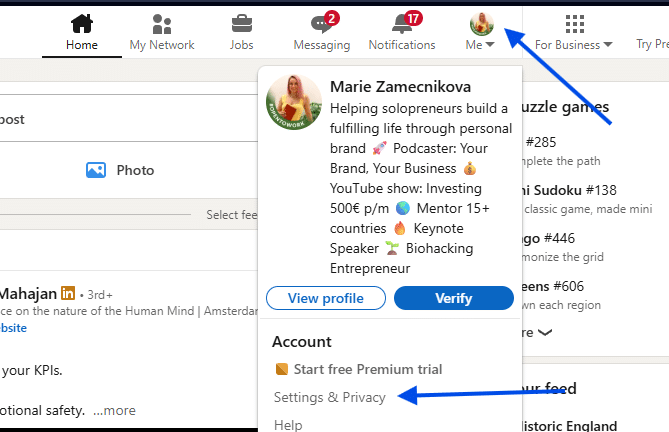
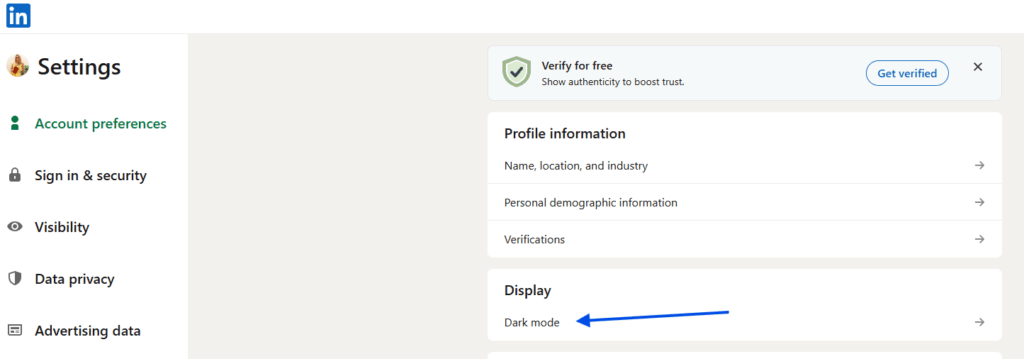
Once you’re in the Dark Mode menu, you have three options:
- Device settings: Your LinkedIn theme will match your device’s current theme.
- Always on: This will switch LinkedIn to dark mode regardless of your device settings.
- Always off: This keeps LinkedIn in light mode (the default setting).
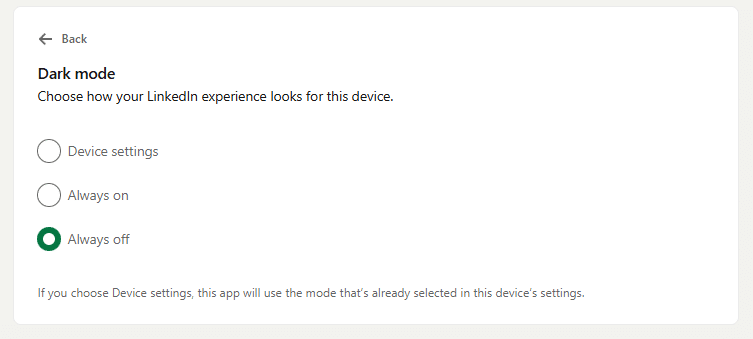
Your choice is saved automatically, so you don’t have to worry about clicking a separate save button. The change is immediate, and you can switch back anytime using the same steps.ur preference will apply immediately, giving your LinkedIn a sleek, dark look.
Why you might want LinkedIn dark mode
Dark mode isn’t just about aesthetics—it can reduce eye strain, save battery on devices with OLED screens, and make it easier to scroll through your feed at night without disturbing others around you. Many users also find that a dark interface feels more modern and comfortable for long sessions of networking, reading articles, or checking notifications.
Things to remember
Since LinkedIn saves dark mode settings locally, it’s worth keeping a few things in mind:
- Each device or browser needs to have dark mode enabled separately.
- Switching devices or using a public computer means you’ll have to reset your preference.
- The setting is automatic once chosen—no need to confirm or hit save.
This local storage approach makes it fast to toggle dark mode on and off but requires you to manage settings across multiple devices if you use LinkedIn frequently in different places.
Turning LinkedIn into dark mode is a quick way to make your browsing more comfortable and stylish. Whether on desktop or mobile, the process only takes a few clicks, and the results are instantly noticeable. By understanding that the preference is device-specific, you can easily maintain dark mode across all your devices. With just a few simple steps, you can reduce eye strain, save battery, and give your LinkedIn experience a modern twist. So why keep staring at a bright white screen when dark mode is just a few taps away?