Blocking someone on LinkedIn is easy. Unblocking them later is where many users get stuck. If you have ever blocked a connection, a recruiter, or even a former colleague and now want to reverse it, this full guide explains exactly how to do it and what to expect afterward. This article walks you through how to unblock on LinkedIn step by step, using only LinkedIn’s official process. No guesses, no shortcuts, and no extra features that do not exist.
What blocking on LinkedIn really does
When you block a member on LinkedIn, you stop them from viewing your profile. They are added to your blocked list, and they are not notified that you blocked them. There is no limit to how many people you can block. However, blocking has some permanent effects you should understand before unblocking someone later. If the person you blocked left a recommendation on your profile, that recommendation will no longer appear. Even if you unblock them later, that recommendation cannot be restored. If you share or previously shared a LinkedIn Recruiter account with the person you are blocking, LinkedIn may notify them of the block. In all other cases, blocking remains private.
Things to know before unblocking someone
Before you move ahead, there are a few important limitations to keep in mind. First, once you unblock someone, you must wait 48 hours before you can block the same person again. This is not optional and cannot be bypassed. Second, if you have blocked more than 2,000 members in total, you may not be able to unblock someone you previously blocked. In that case, LinkedIn recommends contacting support for help with unblocking. Third, unblocking does not restore recommendations, profile interactions, or past visibility. It only removes the block. Understanding these rules helps avoid surprises later.
How to unblock someone on LinkedIn
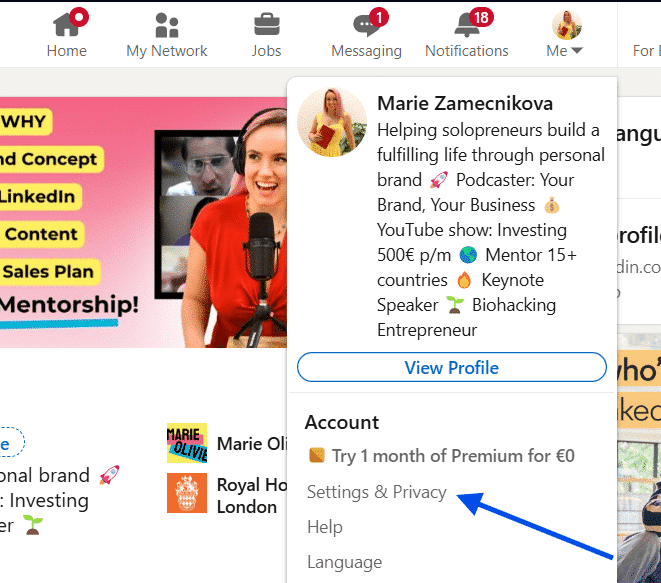
How to unblock someone on LinkedIn? Start by clicking the Me icon at the top of your LinkedIn homepage. Next, select Settings & Privacy from the dropdown menu.
Once inside settings, go to the Visibility section. Under Visibility of your profile & network, you will see an option labeled Blocked members.
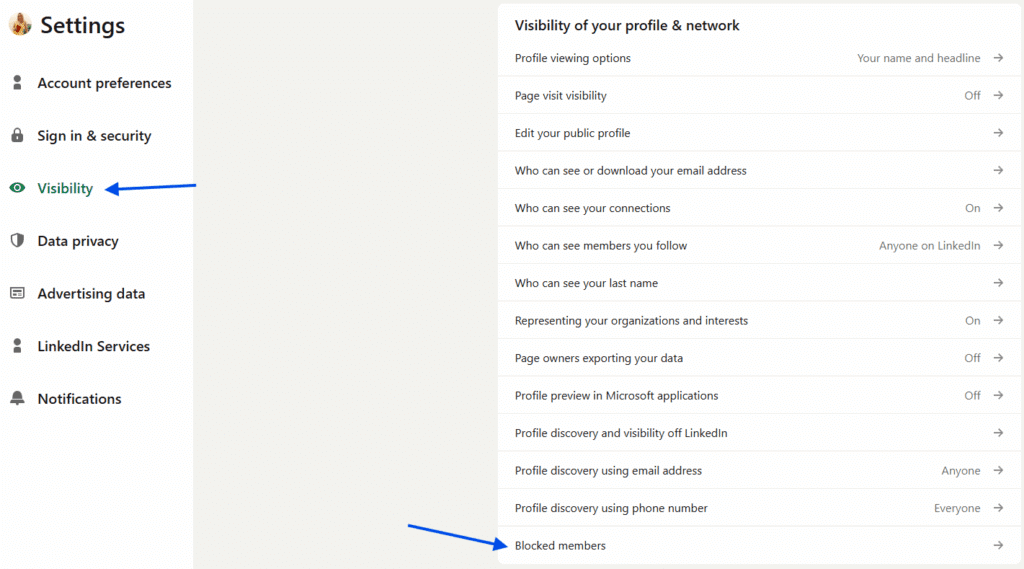
Click Blocking to open your blocked list. This list shows every member you have blocked. Find the person you want to unblock. When you locate their name, click Unblock next to it. At this point, LinkedIn may ask you to confirm your decision. Once confirmed, the member is removed from your blocked list.
Why people choose to unblock someone
There are many reasons users decide to unblock a member. Sometimes a block happens during a disagreement that later gets resolved. Other times, a user may have blocked a recruiter or contact by mistake. In professional spaces like LinkedIn, circumstances change. A blocked profile today could become relevant again tomorrow. Knowing how to unblock on LinkedIn gives you control without forcing you to keep a permanent decision.
Common issues users face when unblocking
The most common issue is not being able to find the blocked list. Many users expect the unblock option to appear on the other person’s profile, but it does not. Unblocking only works through settings. Another issue happens when users have blocked more than 2,000 members. In this case, LinkedIn may prevent unblocking entirely, and support assistance becomes necessary. Some users also expect recommendations to reappear after unblocking. This does not happen, even if the block was temporary.
Blocking and unblocking on LinkedIn is designed to be private, controlled, and deliberate. While blocking is instant, unblocking comes with limits that users should understand before taking action. By following the steps on how to unblock people on LinkedIn outlined above, you can safely manage your blocked list and decide who can view your profile again. If you are careful with timing and aware of the restrictions, unblocking remains a simple process. Now you know exactly how to unblock on LinkedIn without confusion or guesswork.