Have you ever scrolled through LinkedIn, seen something interesting, and hit that little “save” icon thinking you’d return to it later—only to completely forget where it went? You’re not alone. Fortunately, there is a method to the madness, and with a few simple steps, you can finally access all your bookmarked posts without losing your mind.
Why finding saved posts on LinkedIn is tricky
LinkedIn is great for discovering content on the go, but its interface for saving and retrieving posts isn’t the most intuitive. You can easily spot the like, comment, share, and send buttons on a post. But the save button? It’s hidden behind the three dots in the top right corner. This makes saving a post a bit of a stealth operation.
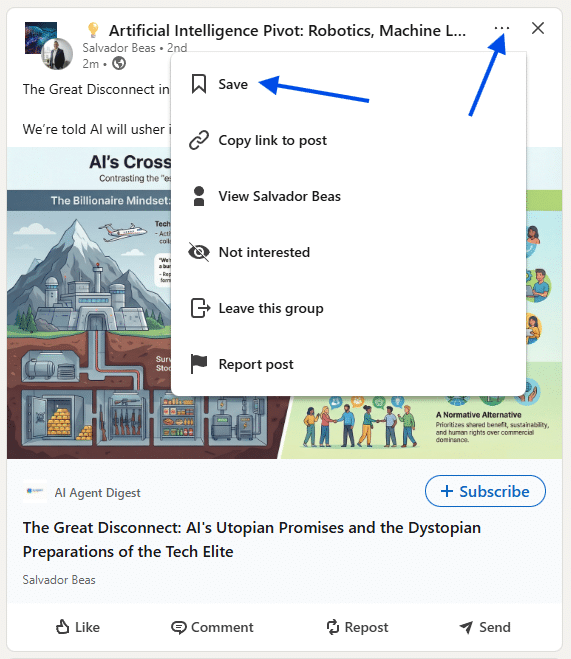
Once saved, the real challenge begins. The icon changes from a white bookmark when saving to a filled bookmark under a section called “My Items.” And it’s here—deep in your profile—that all your saved jobs, courses, and posts live. For anyone who doesn’t navigate LinkedIn daily, finding this section can feel like hunting for buried treasure.
How to find saved posts on LinkedIn
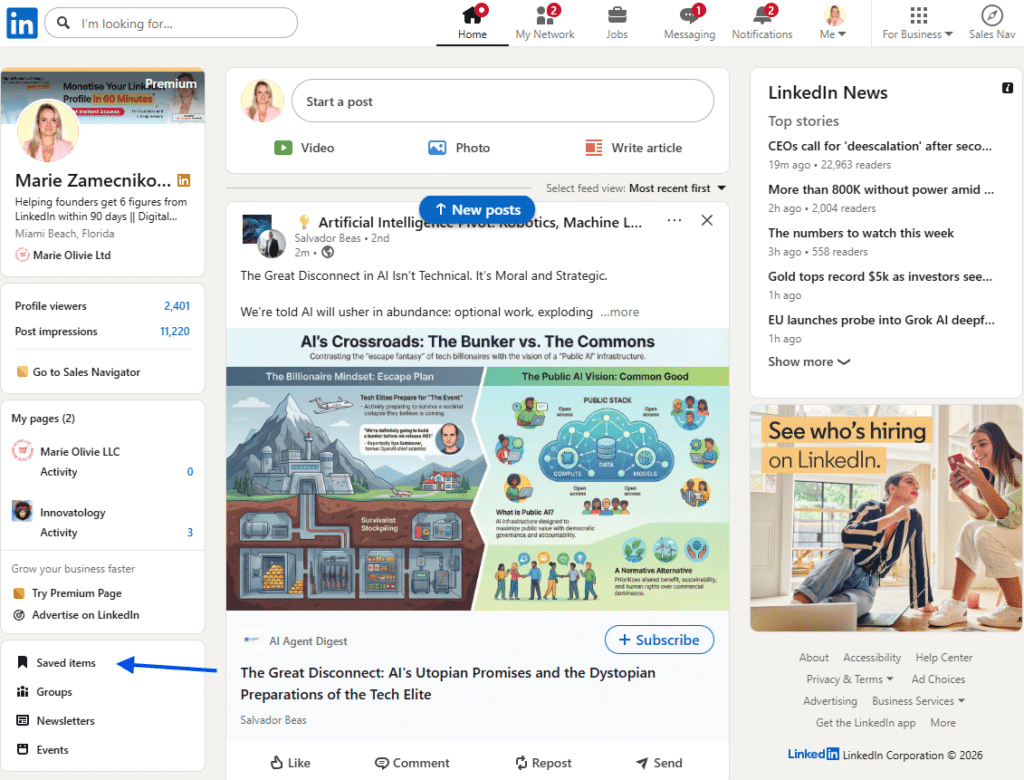
Go to your Home page and locate your profile picture in the top left corner. Look just below it, and you should see a grey bookmark icon labeled “my items.” Click this link to access the page, then select “saved posts and articles” to see everything you’ve bookmarked.
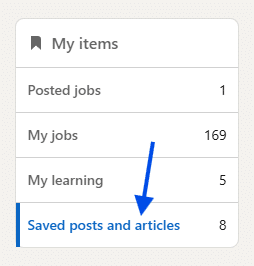
A handy tip: If you want instant access in the future, you can bookmark this direct URL in your browser: https://www.linkedin.com/my-items/saved-posts/. It’s a lifesaver if you tend to forget where things go.
Stop losing your saved LinkedIn posts
It might feel like finding your saved posts on LinkedIn is a hidden challenge, but with the right steps, it becomes a simple task. Whether you’re on desktop or mobile, using the “My Items” section is key. Bookmark it, organize it, and make it a habit to unsave items you no longer need. That way, the next time you come across a post you want to revisit, it’s just a few clicks away—no quest required.
Finding saved posts on LinkedIn doesn’t have to be frustrating. With these tips, you’ll finally have quick access to the content that matters most, making your LinkedIn experience more productive and less stressful.
Beyond just saving posts, LinkedIn is a platform full of opportunities to learn, network, and discover new ideas. Taking a few minutes to organize your saved content can help you turn fleeting interests into actionable insights. Whether it’s an article that sparks creativity, a video that teaches a new skill, or a post that connects you with thought leaders, having easy access to your bookmarked items ensures you can make the most of your time on the platform.