If you’re wondering how to turn off open to work on LinkedIn without drawing attention or damaging your profile, you’re not alone. Many professionals activate the feature during a job search and forget about it later. Others realize too late that the green banner doesn’t match the image they want to project anymore. The good news is that removing it is easier than most people think, once you know where LinkedIn hides the option. Whether you’ve already landed a new role, want to stay discreet, or simply prefer a cleaner profile, knowing how to remove open to work on LinkedIn puts you back in control of how others see you.
Why people decide to turn off open to work on LinkedIn
The green “Open to Work” photo frame can be helpful, but it’s not a long-term solution for everyone. Many users choose to remove it for practical and professional reasons. Some have already accepted a new job and no longer need to signal availability. Others don’t want the banner visible to every profile visitor, especially clients, colleagues, or managers. For some, it’s about aesthetics. A neutral, polished profile often feels more aligned with their personal brand.
There are also users who want to pause or hide their job search from their current employer. While LinkedIn doesn’t notify anyone when you make changes, keeping the banner visible can still feel risky. Turning it off helps reduce that concern.
How to remove open to work on LinkedIn step by step
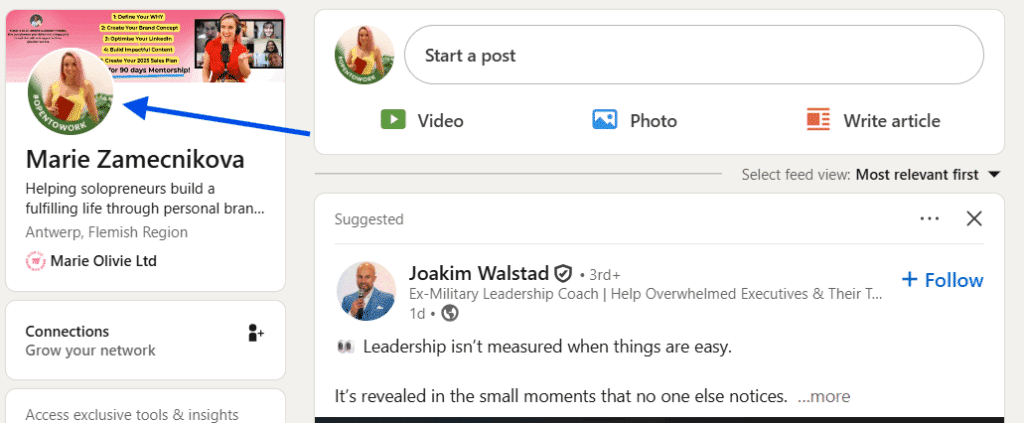
First, go to your LinkedIn profile. Click your profile picture in the top-left corner or select “View profile” from the dropdown menu, or just click your profile picture.
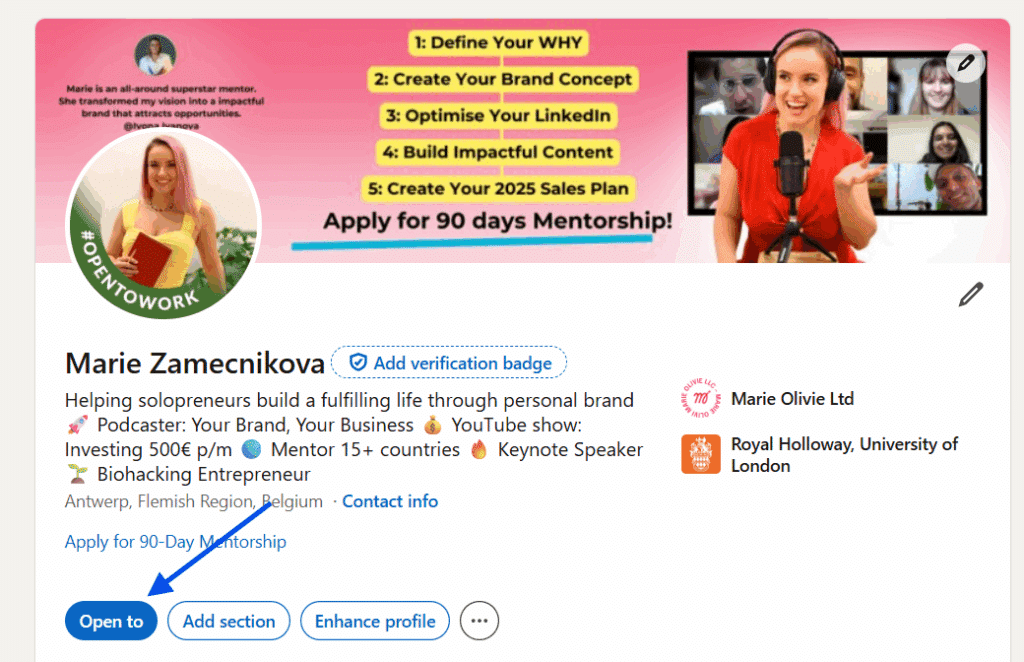
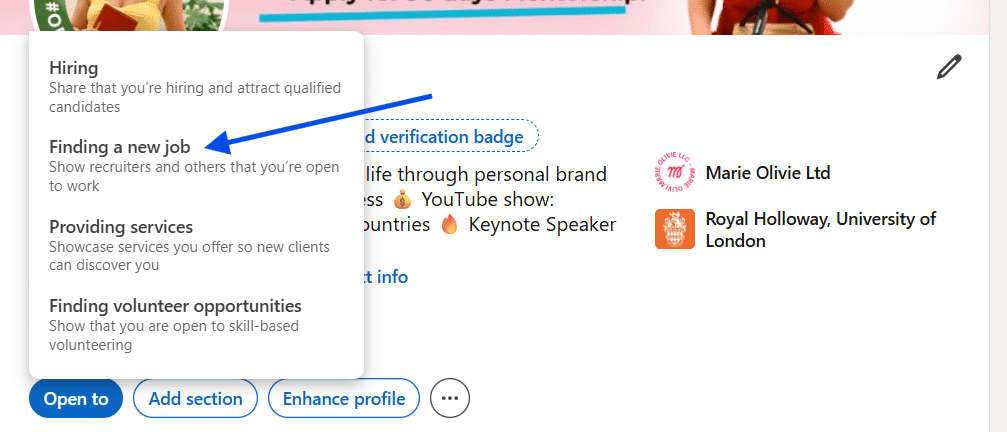
Next, locate the “Open to” section. This appears near the top of your profile, usually under your headline. If the feature is active, you’ll see a box labeled “Open to.” Click it, then select the “Finding a new job” option.
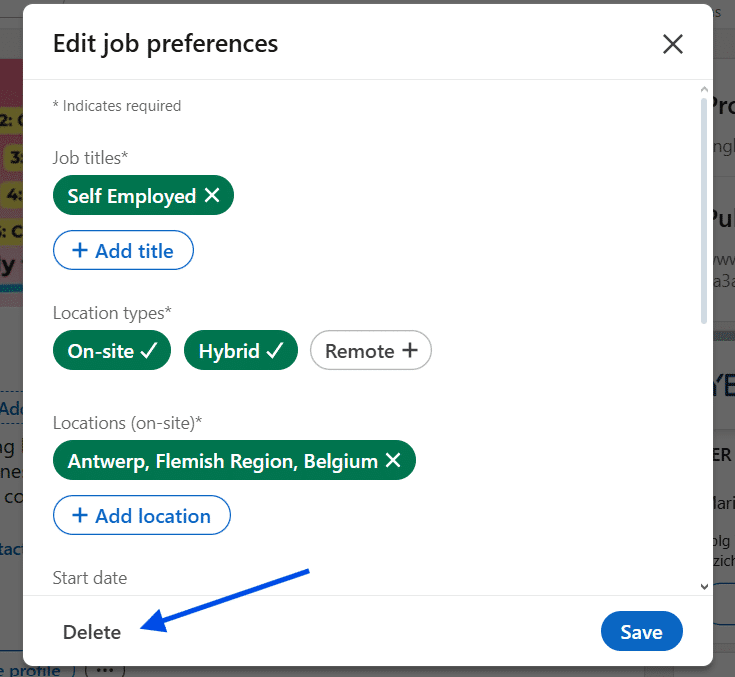
Once the editing window opens, look for the small “Delete” link. Clicking this removes the entire Open to Work section. LinkedIn will ask you to confirm your choice. Select Delete again to finalize the change.
Finally, check your profile picture. The green photo frame is removed automatically when the section is deleted. Refresh your profile to make sure everything looks normal. That’s it. No announcements, no alerts, no awkward side effects.
How to turn off open to work on LinkedIn without losing job alerts
This is where many people get confused. They assume that removing Open to Work LinkedIn also means losing job recommendations and recruiter interest. That’s not true. You can remove the visible banner while keeping your job preferences active. When you’re in the editing pop-up for Open to Work, scroll all the way down. You’ll see two visibility options: “All LinkedIn members” and “Recruiters only.” Select the recruiters option before saving.
This setting removes the green frame from your profile while still allowing recruiters who use LinkedIn Recruiter to see that you’re open to opportunities. This option is ideal if you’re searching discreetly, don’t want public signals on your profile, but still want recruiters to find you.
What happens after you remove open to work on LinkedIn
Many users worry about unexpected consequences after turning the feature off. In reality, the impact is minimal and private. Your profile photo returns to its normal appearance. Other users no longer see the Open to Work section. If you chose the recruiters-only option, recruiters can still view your job preferences through their tools.
Your activity feed does not announce the change, and your connections are not notified. There’s no alert sent to your network, your employer, or your colleagues. In short, removing the banner won’t accidentally expose your job search or raise questions.
Stay in control of your LinkedIn profile
Knowing how to turn off open to work on LinkedIn helps you manage your professional image more intentionally. Whether you’re stepping into a new role, refining your profile, or quietly exploring options, this small setting gives you flexibility. LinkedIn doesn’t always make these controls obvious, but once you know where to click, the process is painless. Turning off Open to Work is less about ending a job search and more about choosing how visible you want that search to be. A clean profile, on your terms, is often the smartest move.