Taking a break from LinkedIn does not have to mean closing your account forever. If you feel overwhelmed, want privacy for a while, or simply need time away from the platform, hibernation is designed exactly for that. Knowing how to hibernate LinkedIn account settings properly can help you step back without losing your history, posts, or future access. This guide explains what it really means to hibernate LinkedIn account activity, what others can see while you are away, and how to turn hibernation on and off using only the official steps.
What does it mean to hibernate LinkedIn account
Hibernating your account is an alternative to closing it. When you choose this option, your LinkedIn profile becomes invisible across the platform. Unlike closing your account, hibernation is temporary and reversible. You can reactivate your account 24 hours after you have hibernated it. During that 24 hour period, your profile is completely inaccessible and you will not be able to log in. This option is useful if you want to pause networking, job searching, or content activity without erasing your presence entirely.
How your profile appears while hibernated
Once you hibernate LinkedIn account visibility changes immediately. Other users will no longer be able to find or view your profile, even if they are already connected to you. Here is exactly what happens to your activity and data while your account is hibernated. Your profile will not be visible to anyone on LinkedIn. It will also not appear in searches, including searches done through other LinkedIn products such as Recruiter.
Recommendations and endorsements you have given to others will remain visible. However, your name will be replaced with the label “A LinkedIn member” until you reactivate your account. Messages you have sent or received will still exist in conversations, but again, you will only be identified as “A LinkedIn member”. Your posts and comments will remain intact. If you previously had a profile photo, it will be replaced by a generic icon, and your name will not be shown. In short, your content stays, but your identity is hidden.
How to hibernate LinkedIn account step by step
If you are ready to take a break, the process is straightforward. Here is how to hibernate LinkedIn account access using the platform settings.
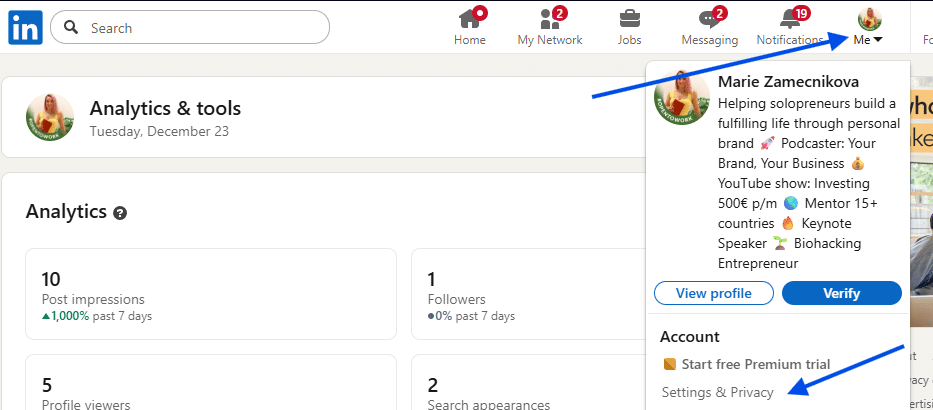
First, click your profile photo at the top of your LinkedIn homepage. From the menu, select Settings & Privacy.
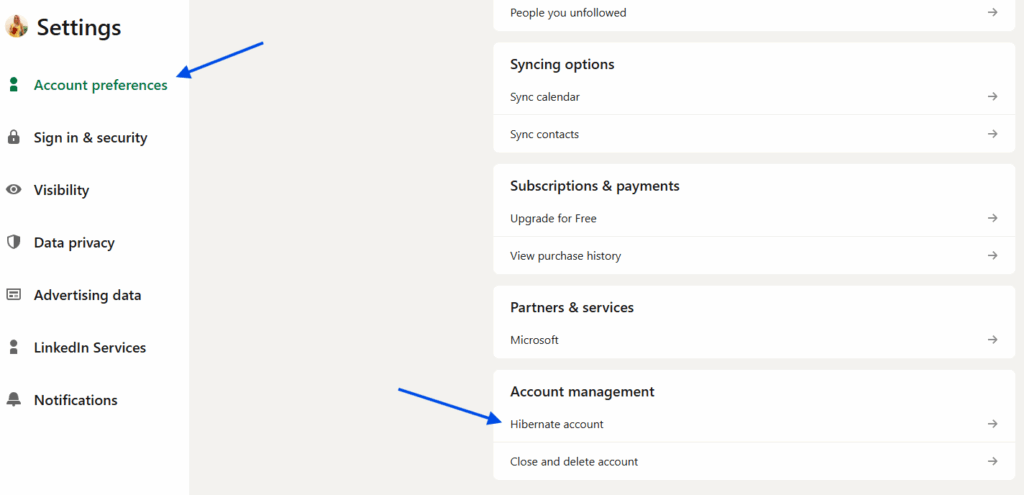
Next, go to Account preferences and choose the option labeled Hibernate account at the bottom of the page.
After that, enter your password and click Hibernate account to complete the process. Once confirmed, your account will immediately enter hibernation mode.
Additional actions you may need to complete
In some cases, LinkedIn may require you to complete certain actions before you can hibernate your account. These actions depend on your account status and responsibilities. Examples include paying outstanding balances, reassigning group admin roles, or deactivating a LinkedIn Learning or Recruiter license. After completing any listed tasks, click the Refresh button to ensure they are removed from the list. If no other tasks appear, you can proceed and click Hibernate. If you still encounter issues, you can use the Contact Support button to open a support ticket.
What happens to subscriptions and licenses
Before you hibernate LinkedIn account access, it is important to understand how subscriptions are handled. If you have an active Premium subscription, it will be automatically canceled immediately when your account is hibernated. Any promotional pricing you previously had may no longer apply if you resubscribe later. If you purchased Premium through Apple, hibernation will cancel the subscription with LinkedIn, but you must also cancel it directly with Apple to prevent future billing.
LinkedIn Sales Solutions licenses work differently. These licenses will remain active when you reactivate your account unless an admin revokes access. It is recommended that you inform your organization’s admins about your hibernation so they can manage licenses appropriately.
How to reactivate your LinkedIn account
Reactivating your account is simple, but timing matters. You must wait at least 24 hours after hibernating before logging back in. During this 24 hour period, your profile remains inaccessible and login attempts will not work. Once the waiting period ends, log in using your usual credentials to end hibernation. After reactivation, you may notice temporary differences in your connection or follower count. This is normal and should resolve within 48 hours.
Choosing to hibernate LinkedIn account activity gives you control without permanent consequences. Your data stays intact, your content remains, and your profile can return exactly when you are ready. If you need privacy, focus time, or a clean break without deleting everything, hibernation is the safest and simplest option available.